
Tag: Utility

  • Pumpkin Planner

    Pumpkin Planner

    What I Asked For

    Carving a pumpkin is a one-way operation. Every cut is permanent, the surface is round, and you only find out whether the face works once the candle goes in and the lights go off. Pumpkin Planner moves all of that to before the knife: photograph the actual pumpkin on your counter, draw the face on it, see it lit, and see it on a porch. The catch is that the plan is only useful if it’s drawn on your pumpkin, not a cartoon one. That means the app has to get your pumpkin out of the photo first, cleanly, on a phone, without asking you to do any work.
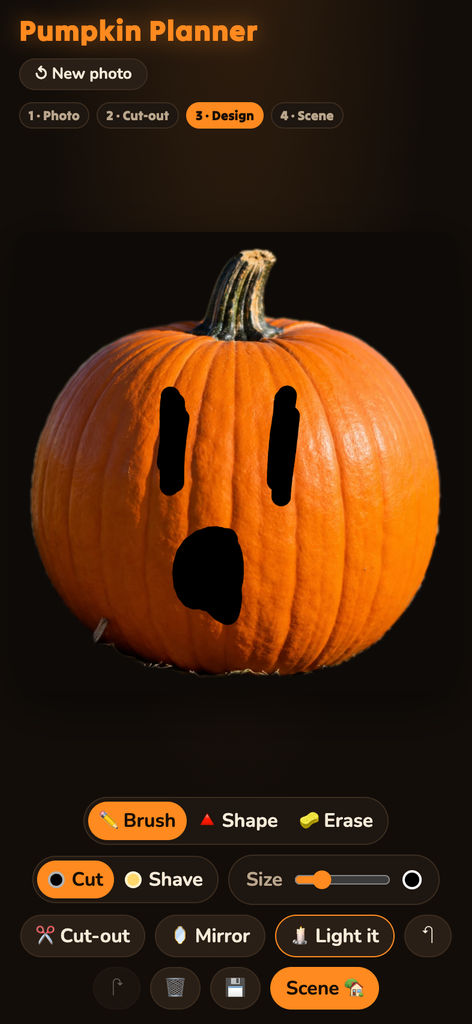
    Pumpkin planner ui

    That cut-out is the whole first half of the problem. The main route is a segmentation model that finds the object under a point. The app taps the middle of its best guess for you the moment the photo lands, and if what comes back covers between 2% and 97% of the frame, you skip straight to drawing. The cut-out step only appears when that fails. It’s there to fix things, not to be a step. Anything the model returns that isn’t connected to the tapped point is thrown away, so the neighbors in a pumpkin-patch photo don’t come along for the ride. If the result is still wrong, you tap the pumpkin yourself and it tries again.

    The fallback is more interesting than the main path. If the model can’t load, you get a hand-fit pumpkin outline built from overlapping vertical ellipses, one per rib, three to nine of them, with the outer ribs narrower and sitting a little lower, which is what gives a pumpkin its scalloped shoulders. A guess places it first: shrink the photo to 160 pixels across, find the biggest blob of strongly saturated orange, weight it toward the middle of the frame, and fit to the 1st through 99th percentile of its extent so a few stray pixels don’t stretch the box. The threshold is strict on purpose. Sunlit straw and wood are orange too, just duller. The sample pumpkin sits on a bed of straw.

    A hand-fit outline never matches exactly, so a “snug edges” pass clips a little wide and then trims back by color. The key decision was to stop judging by generic orange and learn this pumpkin’s color from its own middle. It measures hue, saturation, and chroma across the central 72% of the shape and keeps edge pixels that fall within a few standard deviations of that. Chroma did the work saturation couldn’t: dark crevices and dull straw are saturated on paper, but they aren’t actually colorful. Then the mask is eroded and regrown from the core, so clumps of debris hanging on by a thin strand get cut loose, and any hole that can’t be reached from the border is filled back in, because a glare spot in the middle of a pumpkin is still pumpkin.

    The design tools follow how carving actually works. There are two depths, not two colors. Cut goes all the way through and shows black. Shave takes off only the skin and shows pale yellow, glowing dimly when lit. Painting one depth erases the other underneath it, so no region can somehow be both. You can’t paint on the stem. Mirror is on by default, reflected around the pumpkin’s own center line rather than the photo’s, because most faces are symmetrical and drawing one eye shouldn’t be half the job. There’s a brush, a shape tool that fills whatever outline you draw, an eraser, and unlimited undo, since every stroke is stored and replayed.

    “Light it” is the payoff. The skin darkens by 80%, and the carved areas fill with a radial gradient running from near-white at the center to deep orange at the edges. Cuts get a tight glow and a wide one stacked on top. Shaved areas get a softer glow at half strength. In the scene view the skin only darkens by 55%, because a porch at night has ambient light, and a pumpkin that goes fully black stops looking like it’s sitting there.

    What It Is

    Pumpkin Planner is plain HTML, CSS, and JavaScript with no framework and no build step, about 1,800 lines in total, 1,390 of them the app logic. It runs in the browser and is deployed on Vercel at pumpkinplanner.vercel.app. It was built in one evening.
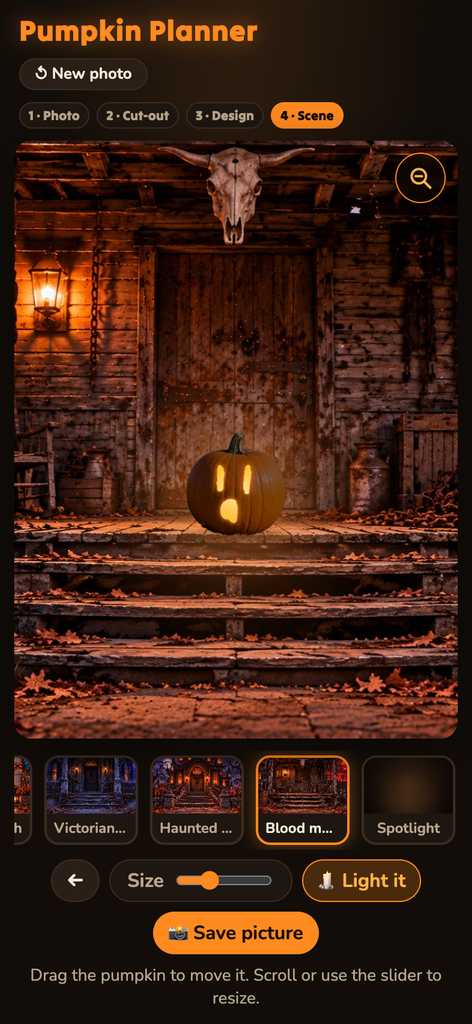
    Pumpkin planner scenes

    The cut-out uses MediaPipe’s Interactive Segmenter, a model of about 6 MB that downloads once and runs on the device, so photos never leave the phone. It starts loading the moment you first touch the start screen, which gives it a head start while you line up the shot. Everything else, from the outline fitting and color learning to the blurs, flood fills, and lit render, is done by hand on canvas pixels. The camera opens with a dashed pumpkin outline to fill, and falls back to the phone’s own camera picker when a live camera feed isn’t available. Saving opens the native share sheet on phones, so a plan goes straight to your photos or the group chat.

    The scene step puts your design on one of four illustrated backdrops (a cozy porch, a Victorian porch, a haunted mansion, and a blood-moon cabin) plus a plain “Spotlight” background drawn in code. Each scene has a preset spot and size for the pumpkin, so it lands on the step instead of floating in the sky. You can drag it and resize it. A soft elliptical contact shadow, flattened to about a sixth as tall as it is wide, keeps it on the ground, and when it’s lit, a glow spills onto the wall and steps around it.

    The last fix was for phones. The backdrops are wide and phone screens are tall, so the scene sat in a letterbox with most of the screen empty. The answer was a zoom button that crops the background to fill the screen, centered on the pumpkin, while the pumpkin keeps its on-screen size. That’s harder than it sounds, because the pumpkin’s position and size are stored as fractions of the whole background. Crop the background and the pumpkin grows right along with it, unless the zoom factor is divided back out. It is.

    You still have to carve it yourself. That was never the app’s job. Its job is to make sure the second eye is the same size as the first.
  • Notepaths

    Notepaths

    What I Asked For

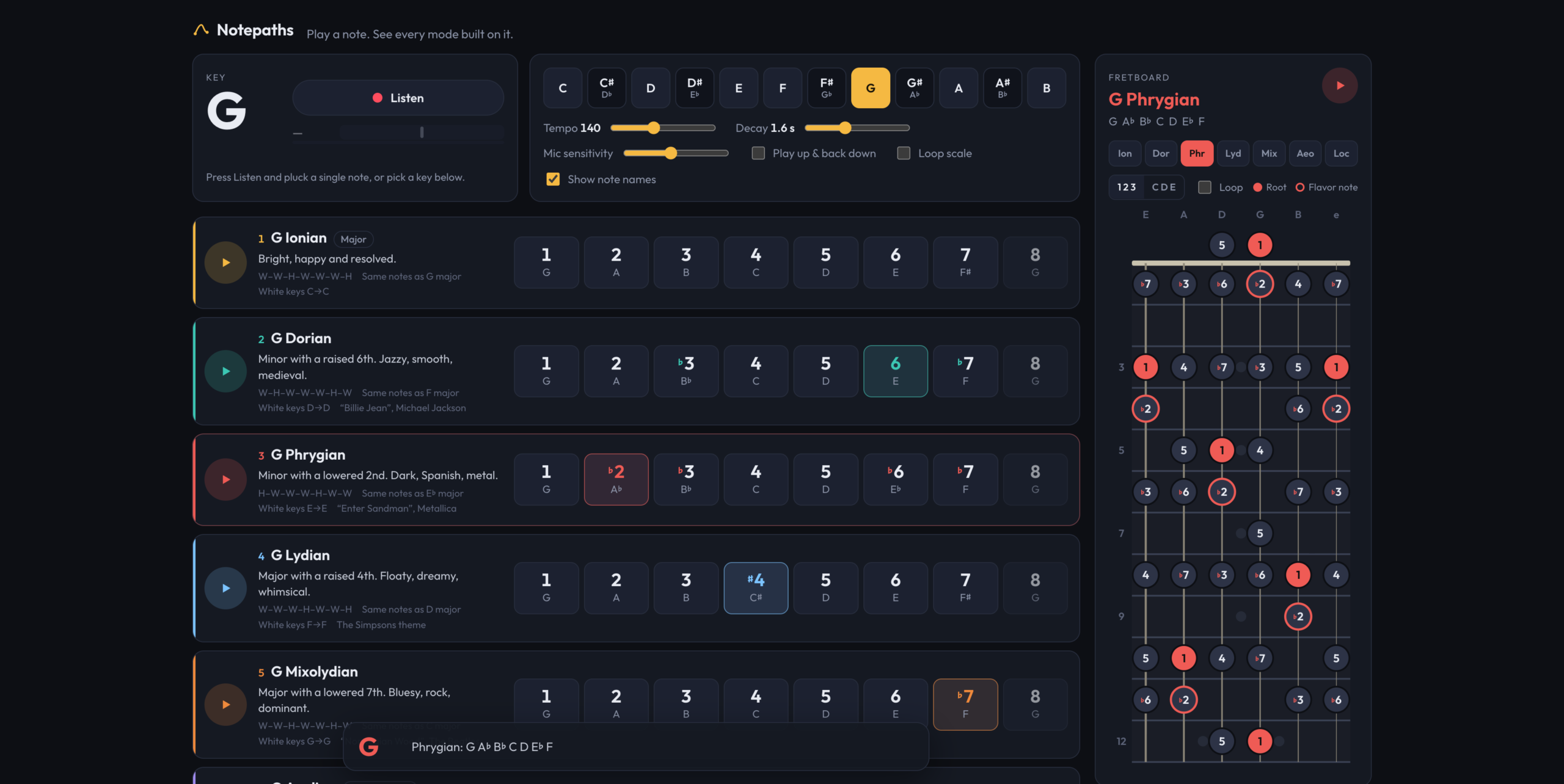
    The usual way to teach the modes is to take the C major scale and start it on a different white key. D to D is Dorian, E to E is Phrygian, and so on up to B. It’s tidy, and it hides the thing that matters. Every one of those scales uses the same seven notes, so to the ear they all sound like C major that forgot where home is. A mode’s character only shows up when the root stays put and the intervals move around it. Notepaths is built on that idea. You play one note, and it shows you all seven modes on that note, stacked so you can hear what each one changes.

    So the white-key version is still there, but as a footnote. Each mode’s card lists its step pattern, the major scale it borrows its notes from, and the white keys it would cover in C. The main event is the row of degrees: seven numbered buttons plus the octave, marked against the major scale, so Dorian reads 1, 2, ♭3, 4, 5, 6, ♭7. Every mode also has a flavor note highlighted, which is the one degree that separates it from its nearest neighbor. For Dorian it’s the natural 6th, for Lydian the raised 4th, and for Mixolydian the flat 7th. Locrian gets two, the ♭2 and the ♭5, because Locrian is a lot. Tap a degree and you hear it, along with its proper name (“minor 3rd”, “augmented 4th”) and, when it’s the flavor note, a line saying so.

    The input is a guitar, not a keyboard. Press Listen, pluck a single note, and the key changes to that note. It changes again on the next note you hold. This turned out to have an obvious failure that’s easy to miss: the app plays notes too. Play a Dorian scale through laptop speakers with the mic open, and the mic hears the scale and changes the key on every degree. The fix is that the app ignores the mic while its own tones are ringing. Each note marks the synth busy for a little over half of its decay time, about the point where the tail is 40 decibels down, plus an eighth of a second of margin. That’s long enough that the app can’t hear itself, and short enough that you don’t feel it ignoring you.

    Spelling the notes correctly took more care than it sounds like it should. A scale has to use each letter name exactly once, so F Lydian has a B natural, not a C flat, and a mode on C sharp can’t just reuse the names a mode on D flat would get. Notepaths tries every possible spelling of the root, scores each by how many accidentals the resulting scale needs, and keeps the cleanest one. On a tie it prefers flats, which is why you get D♭ major rather than C♯ major.

    All playback is moved into one octave, G3 up to F♯4, wherever the key is. That range carries on laptop and phone speakers, and it keeps a scale in E from rumbling while a scale in D♯ squeaks. Tempo runs from 60 to 260 beats per minute, and decay from a fifth of a second to four seconds. Scales can play up and back down, and they can loop. Each pass of the loop picks up the current tempo and decay, so you can adjust them while it plays.

    There’s also a quiz mode, though it isn’t called that. Turn off “Show note names” and every degree shows a question mark until you tap it. Then you’re working from the numbers and your ear, which is the point.

    The fretboard came next. It shows the selected mode on frets 0 through 12 in standard tuning, because the pattern repeats from the 12th fret up. The neck runs down the screen with the low E on the left. Dots can show degree numbers or note names, and the root and flavor notes are colored. Unlike the degree buttons, tapping a dot plays its real pitch, so the open low E is an actual E2. When the mic is on, every position of the note you’re playing lights up, so plucking a note shows you every other place on the neck you could play it.

    Try Notepaths

    What It Is

    Notepaths is TypeScript and Vite with no framework: about 1,070 lines of TypeScript, 1,060 lines of CSS, and a 105-line HTML page, deployed on Vercel at notepaths.vercel.app. The only runtime dependency is a font. All six commits are from one October evening.

    Everything is drawn with plain DOM and SVG. The fretboard is generated SVG built from about a dozen geometry constants, with the wound low strings drawn thicker than the plain high ones. On a wide screen it’s a sidebar next to the modes, and below 1,100 pixels it becomes a full-screen overlay. Settings save to the browser.

    The sound is synthesized live with no samples. Each note is a triangle wave, some sawtooth for bite, and a quiet sine an octave up, run through a filter that starts bright and closes over half a second. That imitates a string losing its upper harmonics after the pick. It isn’t a guitar, but it’s close enough to hum along with.

    The hard part is hearing the guitar. Pitch detection uses the McLeod method, which compares the signal to delayed copies of itself and looks for the delay where it lines up best. That holds up against a guitar’s strong overtones, which tend to fool simpler detectors into reporting the wrong octave. The detector looks at 2,048 samples at a time, about 43 milliseconds, which is enough cycles of a low E to measure. It halves the sample rate first, since guitar fundamentals stay well below 2 kHz, and searches between 55 Hz and 1,500 Hz, from below a drop-tuned low string to past the 24th fret on the high E. A reading only counts if it’s at least 88 percent clear, and a note only changes the key after five frames in a row agree, about 80 milliseconds. Pick noise and octave flicker rarely agree for that long. The mic is also opened with echo cancellation, noise suppression, and automatic gain turned off, because processing designed for voice calls flattens a guitar’s sustain. The detector itself was borrowed from Shredlight, an earlier project that had already solved listening to guitars. Since you’re plucking single notes into a microphone anyway, a small tuner needle next to the Listen button turns green when you’re within 8 cents.

    Notepaths is for the moment after you learn the names of the modes and before you can hear them. Play a note and find out.

  • Token Foundry

    Token Foundry

    What I Asked For

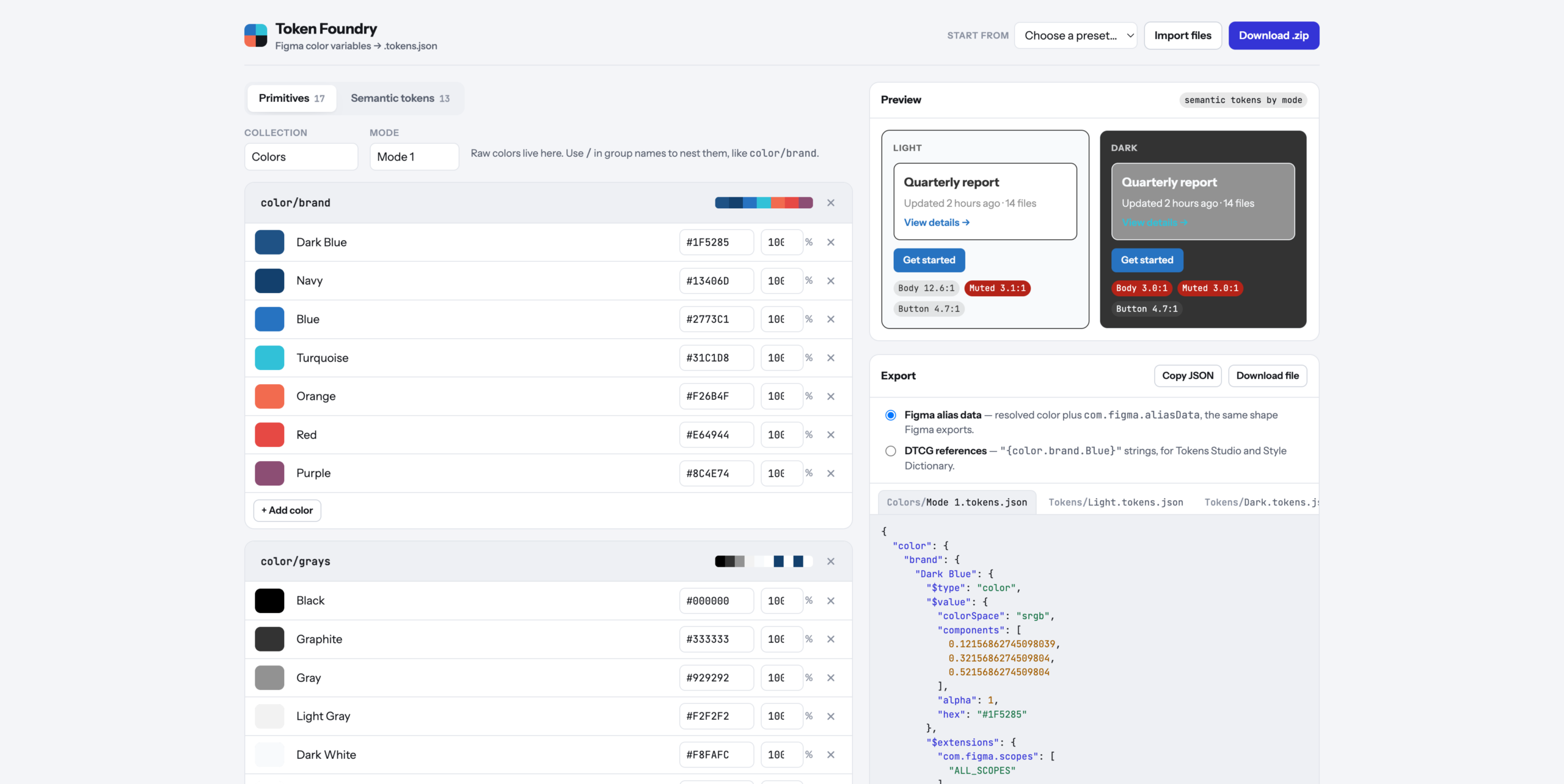
    Figma variables are easy to use and tedious to set up. A real color system is two layers: primitives, which are the raw colors with names like Navy and Graphite, and semantic tokens, which say what a color is for, like surface-card or text-secondary. The semantic layer doesn’t hold colors of its own. It points at primitives, and it points at different ones in Light and Dark. Clicking all of that together in Figma’s variables panel is slow, and it’s the kind of job where one wrong click quietly breaks dark mode. The goal was a tool that makes the whole system in a few minutes and hands Figma something it can import.

    The starting point was a real export. A brand’s variables came out of Figma as three files: one collection called Colors, with 17 primitives in a single mode, and one called Tokens, with 13 semantic tokens split into Light and Dark files. That set the rules. Figma imports one file per mode per collection, so the tool has to produce exactly that shape, and every file has to be something Figma would recognize as its own.

    The format turned out to be more careful than it looks. Every color is stored three ways at once: as the three channel values from 0 to 1, as an opacity, and as a hex code. A semantic token that aliases a primitive doesn’t just store a pointer. It stores the resolved color plus a note naming the variable and collection it came from, so the file is readable even when the link is lost. The tool writes that same shape by default. There’s also a switch for the plainer reference style that Tokens Studio and Style Dictionary read, where a token’s value is just the name of the primitive in braces.

    Linking was the important interaction, so it’s a dropdown, not a text field. Each semantic token has one menu per mode, grouped by primitive group, and picking an entry creates the alias. Change a primitive’s hex and every token pointing at it updates in both modes. When a token needs a one-off color, the last option in the menu unlinks it and a dashed outline around the swatch marks it as custom, so you can tell at a glance which colors are part of the system and which are exceptions.

    The preview reads the semantic tokens by name and draws the same small card in every mode: a heading, a muted line, a link, and a button. Under each card are contrast ratios for body text, muted text, and the button label, checked against the 4.5:1 bar for body text. On the original palette it flagged something immediately: in Dark mode, the muted text lands on a gray card at 3.0:1. That’s the tool’s whole argument in one number.

    The defaults matter because most people don’t start with a palette. There are five presets. Harbor is that real brand palette, renamed, with its Light and Dark links intact. Ocean, Forest, and Ember are starters, each with 28 primitives and 17 semantic tokens across surfaces, borders, text, and status colors. Blank is blank. Every starter is built by the same ramp generator you can use yourself, which takes one base color and returns an 11-step scale from 50 to 950.

    The first version asked “Are you sure?” before loading a preset or deleting a group. That turned out to be a trap. Published pages can block those browser popups, and a blocked popup counts as “No”, so the preset menu could have looked completely broken while doing exactly what it was told. The fix was to stop asking. Presets and deletes now happen immediately, and the notification at the bottom offers Undo for six seconds. It’s faster, and there’s no way for it to silently do nothing.

    What It Is

    Token Foundry is a single HTML file of about 570 lines of vanilla JavaScript and CSS, with one library for making zip files and no build step. It was built in a day and runs on Vercel at https://token-foundry-cyan.vercel.app/. Your work saves in the browser, so closing the tab doesn’t lose it.

    It’s the opposite of Wheelie Club, which was almost entirely art. There isn’t a single image here. Everything is bookkeeping: what each color is called, which group it belongs to, which primitive each token points at in each mode, and which Figma features each group should appear under. Text tokens only show up for text, border tokens only for strokes, and surface tokens only for frame and shape fills. Names with a period, brace, or dollar sign get flagged before export, because those characters are how token files spell references and paths, and duplicate names get flagged because the second would overwrite the first.

    The ramp generator was the most interesting technical problem. Stepping a color’s lightness in ordinary RGB gives uneven results: the yellows jump, the blues crawl, and the middle of the scale goes muddy. So the ramp works in OKLCH, a color space built so that equal numeric steps look like equal steps to your eye. Lightness is fixed per step, from 0.975 at 50 down to 0.23 at 950. Saturation is kept at full strength around 500 and 600 and tapered toward both ends, down to 22% at the lightest step, because a pale color at full saturation looks neon. Some of those combinations can’t be displayed on a screen at all, so each step backs its saturation off 6% at a time until the color fits.

    Import runs the export in reverse. Drop in Figma’s own files, or the zips Figma exports, and the tool rebuilds both collections, the modes, and every alias by matching the stored primitive names. Feeding it the original export and exporting again returns the same structure with every link intact. That round trip was the test that mattered.

    Set up the palette, pick the links, download the zip. The clicking is the tool’s problem now.

  • Styleguide Maker

    Styleguide Maker

    What I Asked For

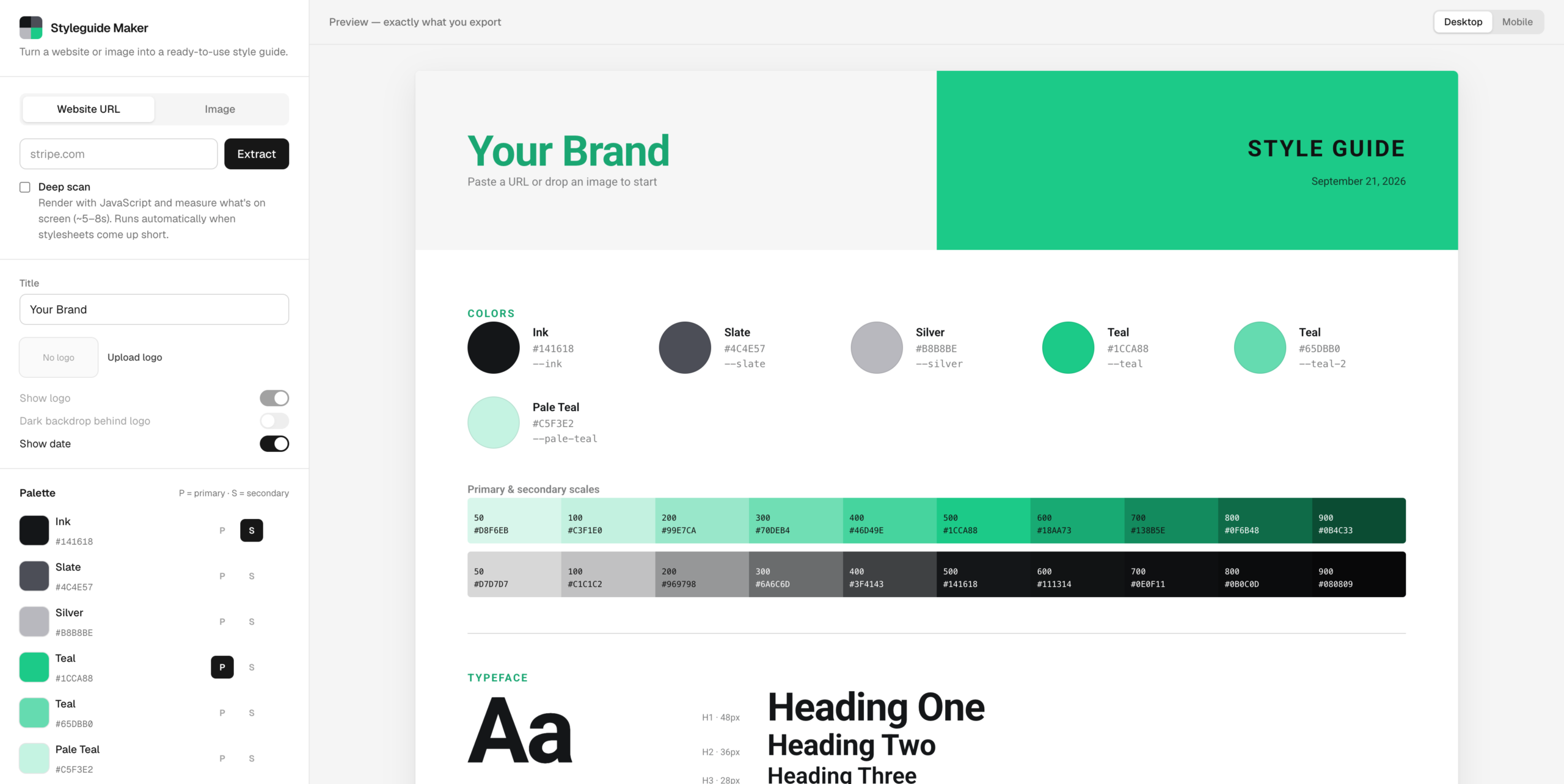
    A style guide is a page nobody wants to make. It’s the swatches, the type scale, the buttons in every state, the form fields with their error messages, all laid out so the next person doesn’t have to guess what shade of green the brand is. Styleguide Maker makes that page from either a website URL or an image. The hard part is that the two inputs are completely different problems. A website already knows its colors and just has to be asked. An image knows nothing and has to be looked at.

    The image side is the simpler one. Every pixel gets dropped into one of 4,096 buckets, and the most crowded buckets win, with one rule: a new color has to be far enough from every color already picked. That distance starts strict and relaxes until six colors make the cut. Without that rule, a photo of a green field returns six greens. With it, you get the field, the sky, and the fence.

    The website side started with a reasonable assumption: modern sites declare their colors as CSS variables, so read the stylesheets, collect the variables, and rank them by how often the rest of the CSS uses them. Anything named primary, brand, or accent gets a thumb on the scale. That works well on sites that publish tokens. Stripe comes back with its exact purple, #533AFD, and its whole brand scale.

    It fell apart on Linear, which returned the colors of its syntax highlighting. Plenty of sites load their styles with JavaScript, or ship stylesheets full of code-sample palettes, embedded tweet widgets, and cookie banners, none of which are the brand. The fix was a deep scan. When the quick pass comes up thin (fewer than four colors, nothing with real saturation, or no fonts), a headless browser loads the page like a visitor would, lets its scripts run, and measures what’s actually painted on the first few screens. Colors are ranked by how much of the screen they cover, and matched back to the site’s variable names where they exist. The primary color comes from the biggest colored button near the top of the page, because that’s the one a designer argued about. A white button on a white page doesn’t count. Vercel’s black button does.

    Waiting for a headless browser takes time, and the rule was that it could take up to eight seconds if it had to, as long as it didn’t feel like eight seconds. So the server streams its progress as it goes, and the loader shows real stages instead of a spinner. A color ring spins through a rainbow until the first colors come back, then spins through the site’s own colors, with swatches popping in and orbiting inside it. The checklist underneath ticks off each step, including the honest one: “Styles look JS-loaded, launching headless browser.”

    The guide itself had to survive whatever a site threw at it. Linear’s primary color is a pale grey, which made the style guide’s own title nearly invisible on a light page. So the guide derives a second version of the primary for anything used as text, darkened step by step until it clears a 3:1 contrast ratio. Logos had a similar problem. The logo finder pulls the actual wordmark from the rendered header, but a lot of wordmarks are white because they sit on dark headers. The app checks how light the logo is and quietly puts it on a dark chip when it would otherwise disappear.

    One idea got cut before it was built: identifying fonts from an uploaded image. It could be done by sending the image to a vision model, but the image mode’s whole promise is that your image never leaves the browser. Picking the font yourself turned out to be a fair trade for that.

    What It Is

    Styleguide Maker is Next.js 16 and TypeScript, about 2,900 lines, deployed on Vercel at styleguide-maker.vercel.app. It was built in a day. The style guide you see in the preview is rendered from exactly the same HTML and CSS you copy out, so there’s no gap between what you look at and what you get. It exports as a PNG at double resolution, as HTML and CSS, or as one standalone file, with the logo and fonts embedded so nothing breaks when it’s opened somewhere else.

    The first version of the deep scan took 14 to 26 seconds in production, which is much longer than a loader can disguise. Most of that time was spent copying every stylesheet back out of the browser, even though the quick pass had already downloaded them. Now it only reads the styles that scripts add while the page runs. Deep scans land in about five to nine seconds, and the quick pass still finishes in about one.

    The hardest problem wasn’t color at all. An app that fetches any URL you give it is also an app that fetches URLs an attacker gives it, including addresses inside the server itself. The original check for private addresses looked fine and had a hole: an IPv6-wrapped version of the loopback address slipped straight past it. On the live site, that let a request reach the internal API of the function that runs the app. The fix was to stop hand-writing address rules and check the actual address at the moment each connection opens, so a domain can’t pass the check and then point somewhere private. The headless browser got stricter treatment still. All of its traffic runs through a small proxy that applies the same check to every request, including ones from popups and background workers, which ordinary request filtering never sees. A test page that tried six different ways to reach a local server got through zero times.

    The rest is ordinary caution for a free tool that might get traffic. Each visitor gets twelve scans a minute and four deep scans. Each server runs at most two browsers at a time, and when it’s busy, you get the quick scan instead of an error.

    It’s a small tool for a boring page. The boring page is the one everyone needs. Try the Styleguide Maker

  • PARSNIP: Platform Aspect Ratio Sizing, Normalization, and Image Packaging

    PARSNIP: Platform Aspect Ratio Sizing, Normalization, and Image Packaging

    What I Asked For

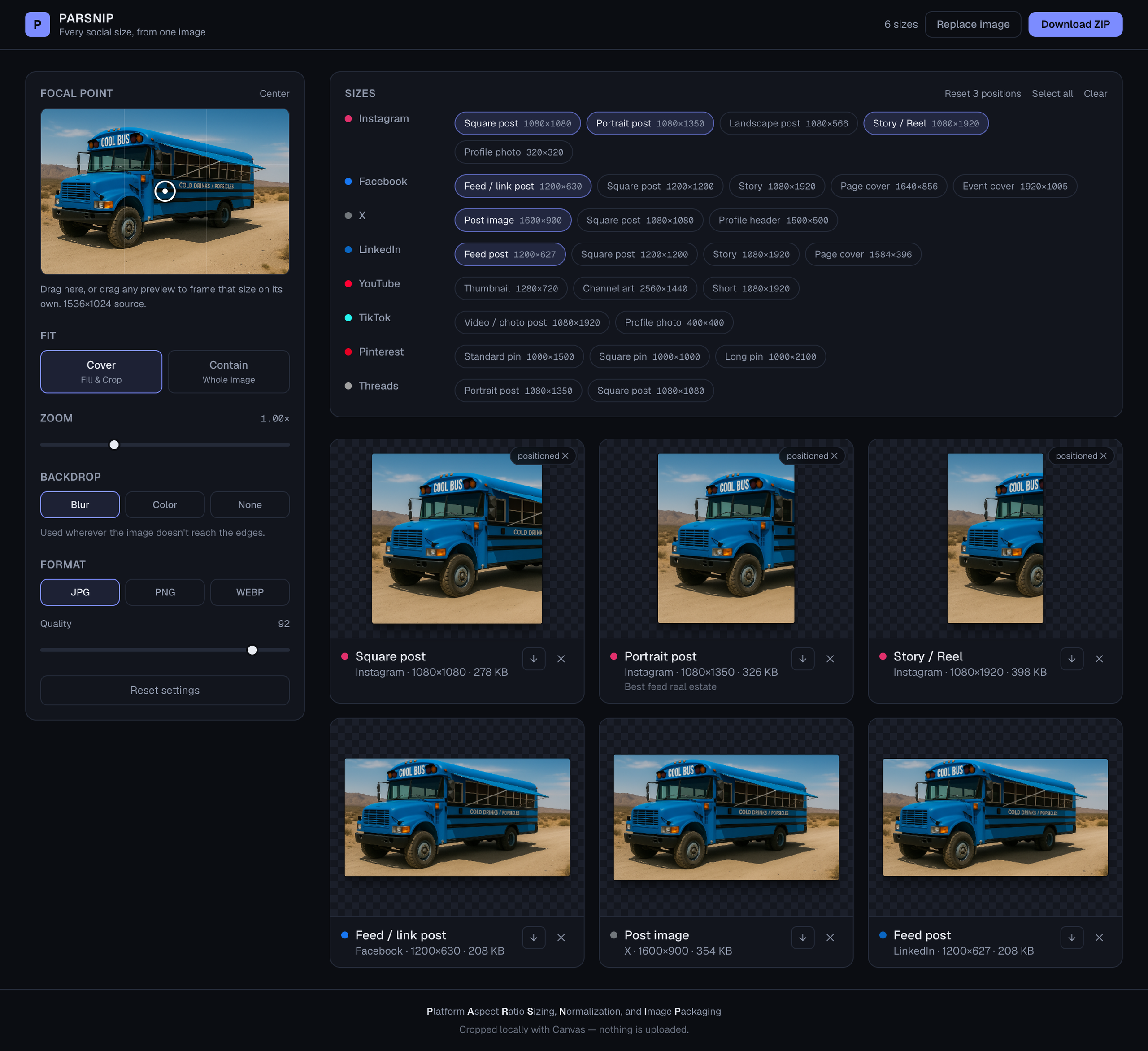
    One image has to become twenty-seven images. That is the whole problem. A photograph is a fixed rectangle, and the platforms want a square, a 4:5 portrait, a 9:16 story, a 16:9 thumbnail, and a profile header that is three times as wide as it is tall. Every one of those is a crop, and a crop throws information away. So the only interesting question in a resizer is not how to scale. It is which part of the picture survives.

    The obvious answer is a focal point. Drop a crosshair on the source image, say “this is the subject”, and let every output crop hold that point in frame. It works, and it is the right default, and it is not enough. A single point cannot serve a 1500 by 500 profile header and a 1080 by 1920 story at once. In the header you need the subject centred horizontally and the sky gone. In the story you need almost the opposite. Pick one point and at least one of those comes out wrong, every time, because the two ratios disagree about which axis matters.

    So framing became per size. Any preview can be dragged directly, and dragging it gives that size its own focal point. The rest keep following the global crosshair. A size you have positioned gets a small badge, which is both a label and the button that resets it, and there is a single control that clears all of them at once. That hybrid matters more than either extreme would: set the global point once, fix the two or three sizes that fought it, leave the rest alone. Previews, single downloads and the ZIP all render from the same options, so what you drag is what you get.

    The per-size drag was broken in a way that was invisible in the code and obvious in the hand. It read the current focal point off the component’s props on every pointer event and added the movement to it. Several pointer events can arrive before React re-renders, so most of them were adding their movement to the same stale value and overwriting each other. Slow drags worked. Fast drags moved a fraction as far as your finger. The fix was to accumulate the point in a ref that updates immediately and tell React afterwards. That wasn’t cosmetic. A framing tool that ignores fast input is a framing tool nobody trusts.

    The rule that shaped everything else: nothing is uploaded. There is no server, no API route, no upload progress bar, because there is nothing to upload to. Every crop, every encode and the ZIP itself are built in the browser out of a canvas. That is partly a privacy position and partly a speed one, and it also removes an entire category of thing that can go wrong when someone drops a 40 megapixel photo into a web page.

    Letterboxing got its own decision. When you ask for the whole image instead of a crop, or zoom out past the exact fit, something has to fill the gap. Solid colour is honest and ugly. Transparent is useful for a PNG logo and useless everywhere else. The default is a blurred, slightly darkened copy of the image itself, which reads as deliberate rather than as a mistake. It only appears where the image genuinely doesn’t reach the edges, so switching backdrops does nothing at all on a cover crop.

    The mobile layout was the last thing to change and the most straightforward failure. Stacked on a phone, the order was controls, then the size picker, then the previews, which put every preview below the fold. You would change the backdrop or drag the quality slider and see absolutely nothing happen. Now the picker and the controls share a pair of tabs on small screens, the control groups pair up into two columns there, and a pinned strip of live thumbnails sits directly under the tabs. Wherever you have scrolled to, the result is on screen. Desktop is untouched.

    Twenty-seven sizes are available and six are selected when you arrive: the Instagram square, portrait and story, the Facebook feed image, the X post and the LinkedIn post. All twenty-seven by default would be a wall of previews and a much slower first render, and most people with one image are posting it in about six places.

    The name is an acronym, arrived at the way every good acronym is, which is backwards. Platform Aspect Ratio Sizing, Normalization, and Image Packaging describes the app exactly, and that is a coincidence it took half a dozen attempts to arrange. One of the rejected candidates stood for Browser-Executed Social Media Image Resizing and Cropping Helper. It spells BESMIRCH.

    What It Is

    PARSNIP is Next.js 16, React 19 and TypeScript with Tailwind, about 1,200 lines including styles. It was built in a day. The only dependency doing real work beyond the framework is the ZIP library, and that one is loaded on demand when you actually ask for a ZIP.

    There are no image assets. The presets are a plain table of platform, name and pixel dimensions, and everything you see on screen is a canvas drawn at runtime from the image you dropped in. Previews render at up to 420 pixels on the long edge, and a tile only starts rendering once it comes within 400 pixels of the viewport, because redrawing twenty-plus canvases at once while someone drags a zoom slider is a waste. Settings are debounced by about a tenth of a second, and the per-size file readout waits half a second of quiet before doing a full resolution encode just to measure the bytes. The ZIP is foldered by platform and yields to the browser between sizes so the progress counter actually paints.

    Two problems took real work. The first is that browsers alias badly when a large bitmap is drawn straight into a small box, which matters here because a 320 pixel profile photo out of a 6000 pixel camera file is a twenty-fold reduction. The image is halved repeatedly into intermediate canvases until it is within a factor of two of the target, and only then drawn at final size. The second is that the blurred backdrop came out with translucent borders. A blur samples pixels beyond the edges of what you drew, and beyond the edges there is nothing, so the outer band of the frame ends up partly transparent. The plate is now laid over an opaque base and drawn deliberately oversized, by four blur radii, so the soft edge falls outside the visible area. A light wash goes over the top because some browsers ignore the canvas blur filter entirely and would otherwise show a sharp, full-brightness copy of the photo behind the photo.

    It is the exact inverse of Wheelie Club, which was almost entirely art: reference sheets sliced into sprites, geometry measured out of them, riders anchored to seats. PARSNIP ships no pictures at all. It only makes them.

    You have one good photo and six places to put it. That is the whole job.

    Try PARSINP.