What I Asked For
Carving a pumpkin is a one-way operation. Every cut is permanent, the surface is round, and you only find out whether the face works once the candle goes in and the lights go off. Pumpkin Planner moves all of that to before the knife: photograph the actual pumpkin on your counter, draw the face on it, see it lit, and see it on a porch. The catch is that the plan is only useful if it’s drawn on your pumpkin, not a cartoon one. That means the app has to get your pumpkin out of the photo first, cleanly, on a phone, without asking you to do any work.
That cut-out is the whole first half of the problem. The main route is a segmentation model that finds the object under a point. The app taps the middle of its best guess for you the moment the photo lands, and if what comes back covers between 2% and 97% of the frame, you skip straight to drawing. The cut-out step only appears when that fails. It’s there to fix things, not to be a step. Anything the model returns that isn’t connected to the tapped point is thrown away, so the neighbors in a pumpkin-patch photo don’t come along for the ride. If the result is still wrong, you tap the pumpkin yourself and it tries again.
The fallback is more interesting than the main path. If the model can’t load, you get a hand-fit pumpkin outline built from overlapping vertical ellipses, one per rib, three to nine of them, with the outer ribs narrower and sitting a little lower, which is what gives a pumpkin its scalloped shoulders. A guess places it first: shrink the photo to 160 pixels across, find the biggest blob of strongly saturated orange, weight it toward the middle of the frame, and fit to the 1st through 99th percentile of its extent so a few stray pixels don’t stretch the box. The threshold is strict on purpose. Sunlit straw and wood are orange too, just duller. The sample pumpkin sits on a bed of straw.
A hand-fit outline never matches exactly, so a “snug edges” pass clips a little wide and then trims back by color. The key decision was to stop judging by generic orange and learn this pumpkin’s color from its own middle. It measures hue, saturation, and chroma across the central 72% of the shape and keeps edge pixels that fall within a few standard deviations of that. Chroma did the work saturation couldn’t: dark crevices and dull straw are saturated on paper, but they aren’t actually colorful. Then the mask is eroded and regrown from the core, so clumps of debris hanging on by a thin strand get cut loose, and any hole that can’t be reached from the border is filled back in, because a glare spot in the middle of a pumpkin is still pumpkin.
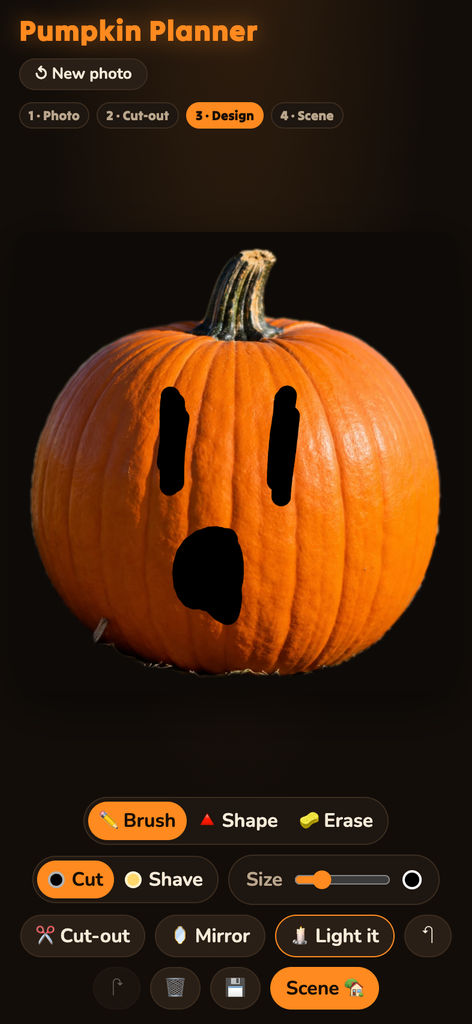
The design tools follow how carving actually works. There are two depths, not two colors. Cut goes all the way through and shows black. Shave takes off only the skin and shows pale yellow, glowing dimly when lit. Painting one depth erases the other underneath it, so no region can somehow be both. You can’t paint on the stem. Mirror is on by default, reflected around the pumpkin’s own center line rather than the photo’s, because most faces are symmetrical and drawing one eye shouldn’t be half the job. There’s a brush, a shape tool that fills whatever outline you draw, an eraser, and unlimited undo, since every stroke is stored and replayed.
“Light it” is the payoff. The skin darkens by 80%, and the carved areas fill with a radial gradient running from near-white at the center to deep orange at the edges. Cuts get a tight glow and a wide one stacked on top. Shaved areas get a softer glow at half strength. In the scene view the skin only darkens by 55%, because a porch at night has ambient light, and a pumpkin that goes fully black stops looking like it’s sitting there.
What It Is
Pumpkin Planner is plain HTML, CSS, and JavaScript with no framework and no build step, about 1,800 lines in total, 1,390 of them the app logic. It runs in the browser and is deployed on Vercel at pumpkinplanner.vercel.app. It was built in one evening.
The cut-out uses MediaPipe’s Interactive Segmenter, a model of about 6 MB that downloads once and runs on the device, so photos never leave the phone. It starts loading the moment you first touch the start screen, which gives it a head start while you line up the shot. Everything else, from the outline fitting and color learning to the blurs, flood fills, and lit render, is done by hand on canvas pixels. The camera opens with a dashed pumpkin outline to fill, and falls back to the phone’s own camera picker when a live camera feed isn’t available. Saving opens the native share sheet on phones, so a plan goes straight to your photos or the group chat.
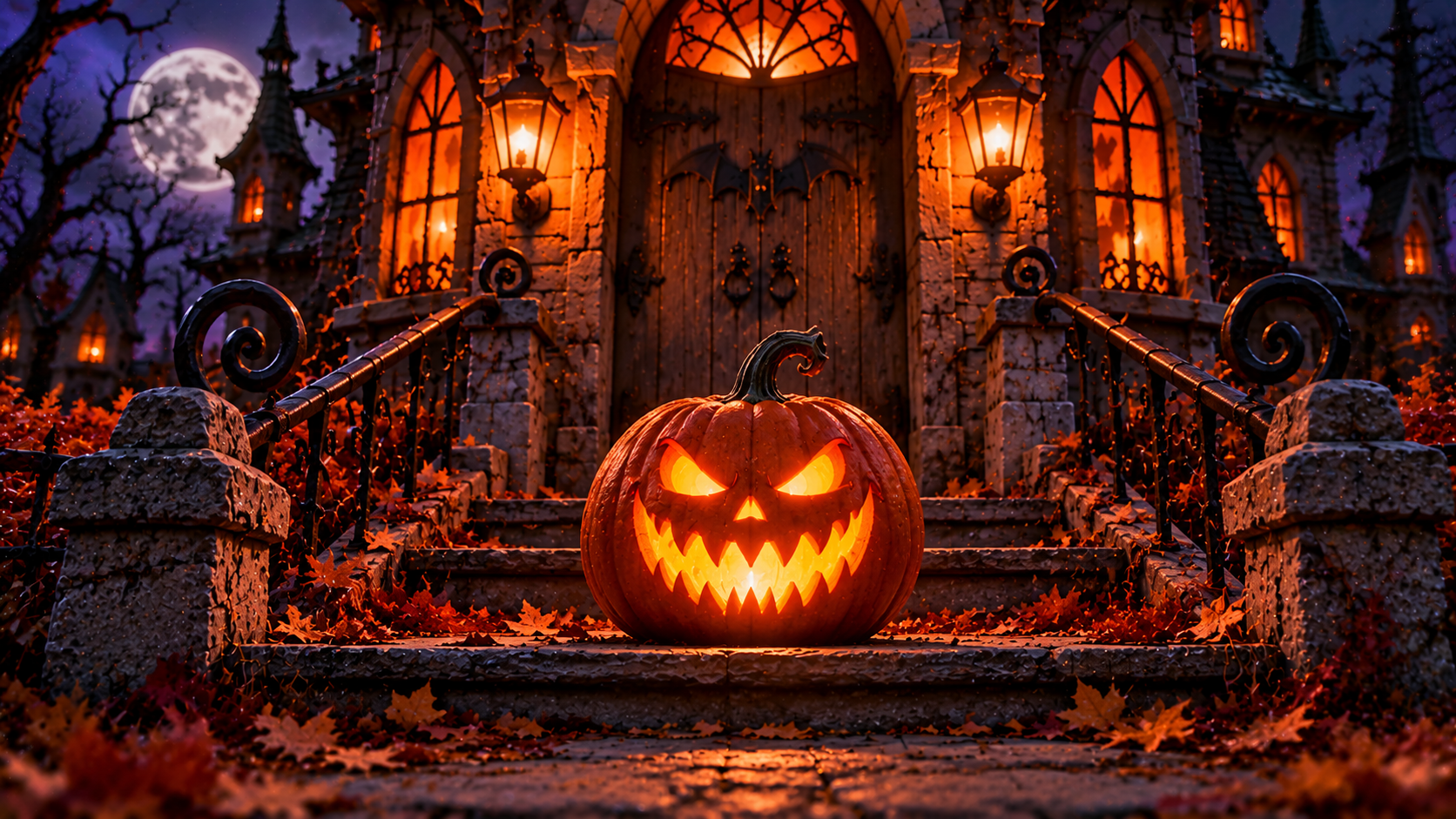
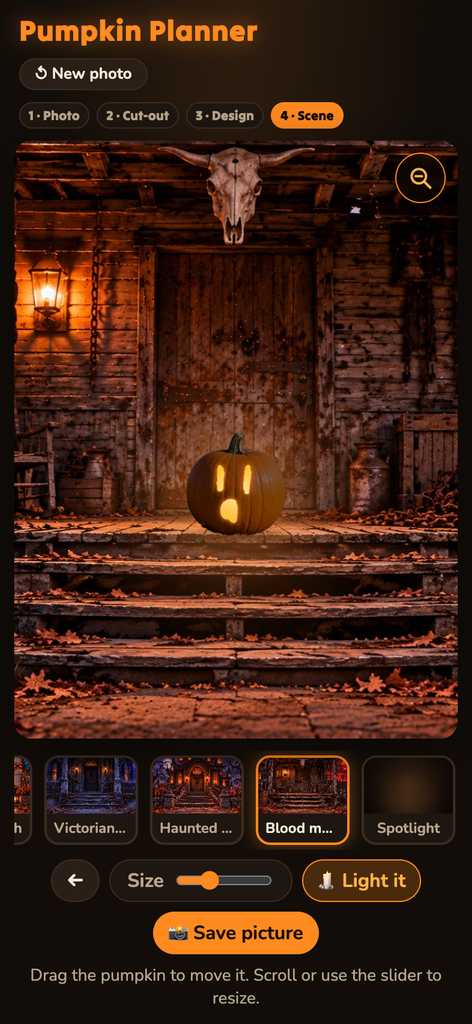
The scene step puts your design on one of four illustrated backdrops (a cozy porch, a Victorian porch, a haunted mansion, and a blood-moon cabin) plus a plain “Spotlight” background drawn in code. Each scene has a preset spot and size for the pumpkin, so it lands on the step instead of floating in the sky. You can drag it and resize it. A soft elliptical contact shadow, flattened to about a sixth as tall as it is wide, keeps it on the ground, and when it’s lit, a glow spills onto the wall and steps around it.
The last fix was for phones. The backdrops are wide and phone screens are tall, so the scene sat in a letterbox with most of the screen empty. The answer was a zoom button that crops the background to fill the screen, centered on the pumpkin, while the pumpkin keeps its on-screen size. That’s harder than it sounds, because the pumpkin’s position and size are stored as fractions of the whole background. Crop the background and the pumpkin grows right along with it, unless the zoom factor is divided back out. It is.
You still have to carve it yourself. That was never the app’s job. Its job is to make sure the second eye is the same size as the first.